 Photo Filters
Blur Image
Blur image files with one radius slider and a live preview. Free, no sign-up, and the photo never leaves your browser.
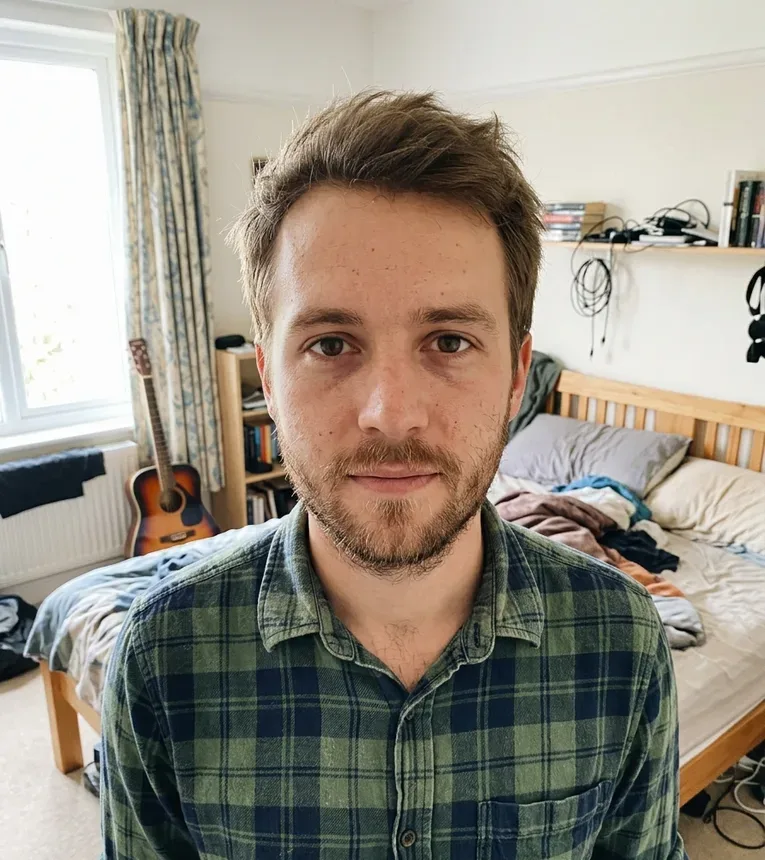 Before
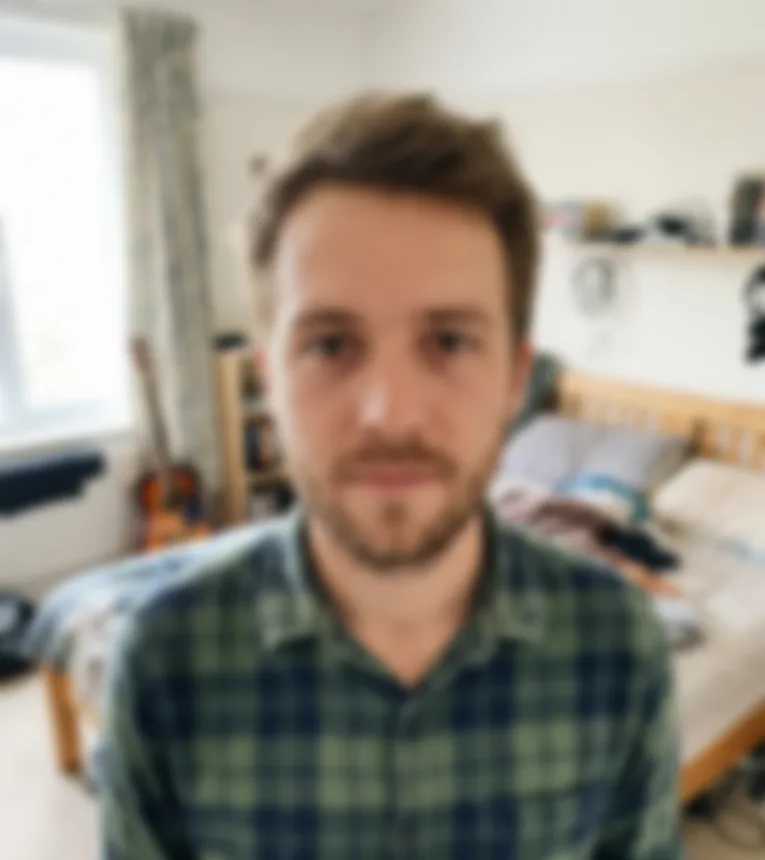 After
How to blur a photo in three steps
One slider sets how much you blur image detail, and the preview redraws while you drag it.
- 1
Add a picture
Click the box or drag a JPG, PNG or WebP file onto it, up to 20 MB. A photo larger than 2400 px on its long side is scaled down to that size first; smaller ones keep their size.
- 2
Drag the blur radius
The radius runs from 1 to 60 px and starts at 12. It is the distance, in pixels of your photo, that each point is blended with, so 2 to 5 px takes the edge off fine detail and 40 px or more melts the scene into soft patches of color.
- 3
Compare, then save
Press and hold the preview, or hold the Space key, to see the sharp original. When the blur image preview looks right, the Download PNG button saves a file named after your photo with -blur-image added.
What people blur a photo for
A blur image tool that covers the whole frame fits more jobs than it sounds.
Backgrounds for text
A heavily blurred photo makes a calm backdrop for a quote, a slide title or a social post. The colors of the scene stay, the busy detail goes, so the words stay readable on top.
Wallpapers from your own shots
Blur a city at night, a beach or a forest at 40 px or more and you get an abstract wallpaper in that place's colors. Icons and widgets sit cleanly on it.
A soft, dreamy look
A small radius of 2 to 6 px softens a portrait or a wide outdoor shot without turning it into mush. It reads like a lens smeared with a little haze.
Teasers and spoilers
Post a blurred image before a reveal: a new product, a room makeover, the last frame of a puzzle. People can tell something is there without seeing what it is.
Placeholders for web pages
A tiny, very blurred copy of a photo can stand in while the full picture loads. Blur image copies for this at a high radius, then shrink the PNG in your usual image tool.
Covering a whole screenshot
When nothing in a picture should be read, such as a chat, a list of names or a cluttered desk, blur all of it at a high radius and check the preview before you share it.
Whole photo blur, area blur, pixelate or a box?
Tools that blur image content work in four main ways. This page does the first; the table shows where the others fit.
| Whole photo blur (this page) | Brush or area blur | Pixelate | Solid box | |
|---|---|---|---|---|
| What it does | Blends every pixel with its neighbors | Blurs only where you paint or select | Averages the photo into square blocks | Covers an area with flat color |
| You control | Radius, 1 to 60 px | Brush size, softness, strength | Block size | Where the box goes |
| Looks like | Out of focus, soft edges | A sharp subject on a soft area | A visible mosaic | A black bar |
| Hides text and faces | Only at a high radius; check it | Depends on the strength | Better at large blocks | Yes, the pixels are replaced |
| On this site | This tool | Not offered | Pixelate image | Blur face, Black box style (faces only) |
What happens to the photo you blur
This blur image tool runs on a canvas in your browser tab. That decides most of the answers below.
Your photo is not uploaded
Browser filters process your photo on your device and never upload it. In our tests no network request carried the photo, and closing or reloading the tab discards both the original and the blurred copy.
No camera or location data in the download
The PNG is drawn fresh from the canvas, so it carries none of the original's EXIF data: no camera model, no date taken, no GPS position.
Free, with no account and no cap
There is no sign-up, no watermark and no limit on how many photos you blur or how often you download. There is no paid plan to upgrade to.
The limits that do apply
One photo at a time, JPG, PNG or WebP up to 20 MB. The output is a PNG at the working size, at most 2400 px on the long side, so a larger camera photo comes out smaller.
More filters
Frequently asked questions
Open this page in Safari, tap the upload box, choose the photo, drag the blur radius and tap Download PNG. If the photo is refused, it was saved as HEIC, which this tool doesn't read. Convert it to JPG first, or set Settings, Camera, Formats to Most Compatible so new photos are saved as JPG.
Use the page in your phone's browser; there is no app to install, and the blur image controls are the same as on a computer. On a phone the preview sits on top and the slider below it. Pick a JPG, PNG or WebP picture, set the radius, and the PNG is saved where your browser keeps downloads.
A blur picture is a photo in which the detail has been softened so edges and textures run together, as if the lens were out of focus. Here that is done with stack blur, a fast approximation of a Gaussian blur that mixes each pixel with the pixels around it.
Use this page. You can blur image files, preview them and download the result at no cost, with no sign-up, no watermark and no daily limit. The only work is dropping in a photo and moving one slider.
No. This tool blurs the whole image the same amount, and it has no brush, mask or subject detection. To cover faces only, the blur face tool finds them for you; for a sharp subject on a soft background, a portrait mode camera or an editor with an area blur does the job.
It depends on the photo, because the radius counts pixels, so when you blur image files of different sizes the same value looks different. On a 2400 px wide photo, 12 px gives a light softening; on a 600 px screenshot the same 12 px covers four times as much of the frame and looks far stronger. Start at the default and drag until the preview looks right.
Only when the blur is strong enough. If you blur image text or faces at a low radius, they can stay recognizable, so push the radius up and look closely at the preview before you share. Some redaction guides say a solid shape is the most secure way to hide something; on this site the blur face tool's Black box style does that for faces.
This site has no unblur tool. When you blur image files here, the tool works on a copy: your original file stays on your device unchanged, so keep it if you may want the sharp version later.
No. It offers one even blur in every direction, set by the radius. There is no motion, radial, lens or tilt-shift option.
A PNG at the size the photo was processed at: your original size, or 2400 px on the long side if the photo was larger. There is no JPG or WebP download and no quality setting.